Password
If you have questions about password security, you can find more information here:
Password Security
We also recommend reading here about why a password manager is a useful addition to your online security.
Change password
-
Log in to the login page using your credentials.
-
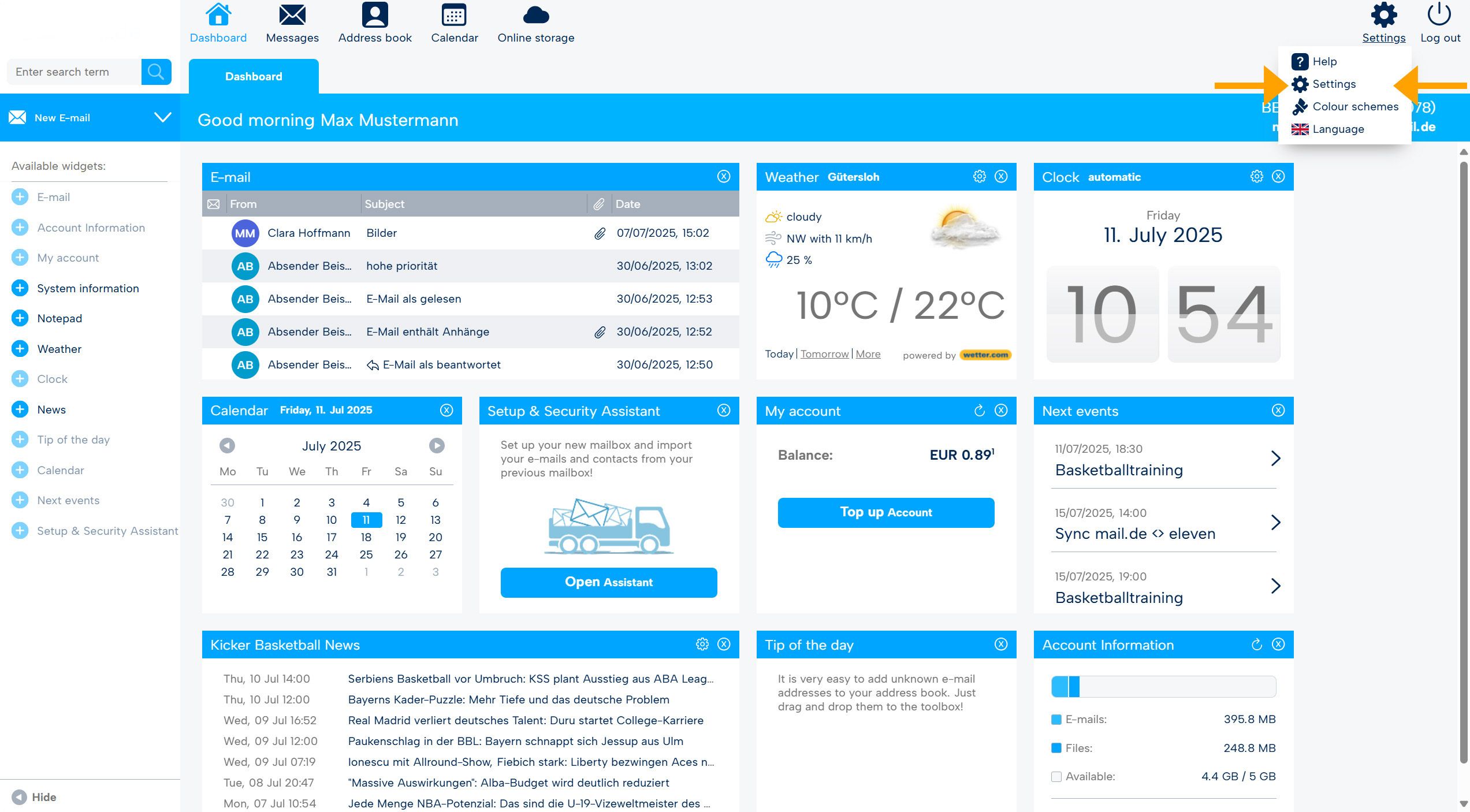
After logging in, you are on the start page of the webmailer, from there go to the settings mode (cogwheel, top right).
-
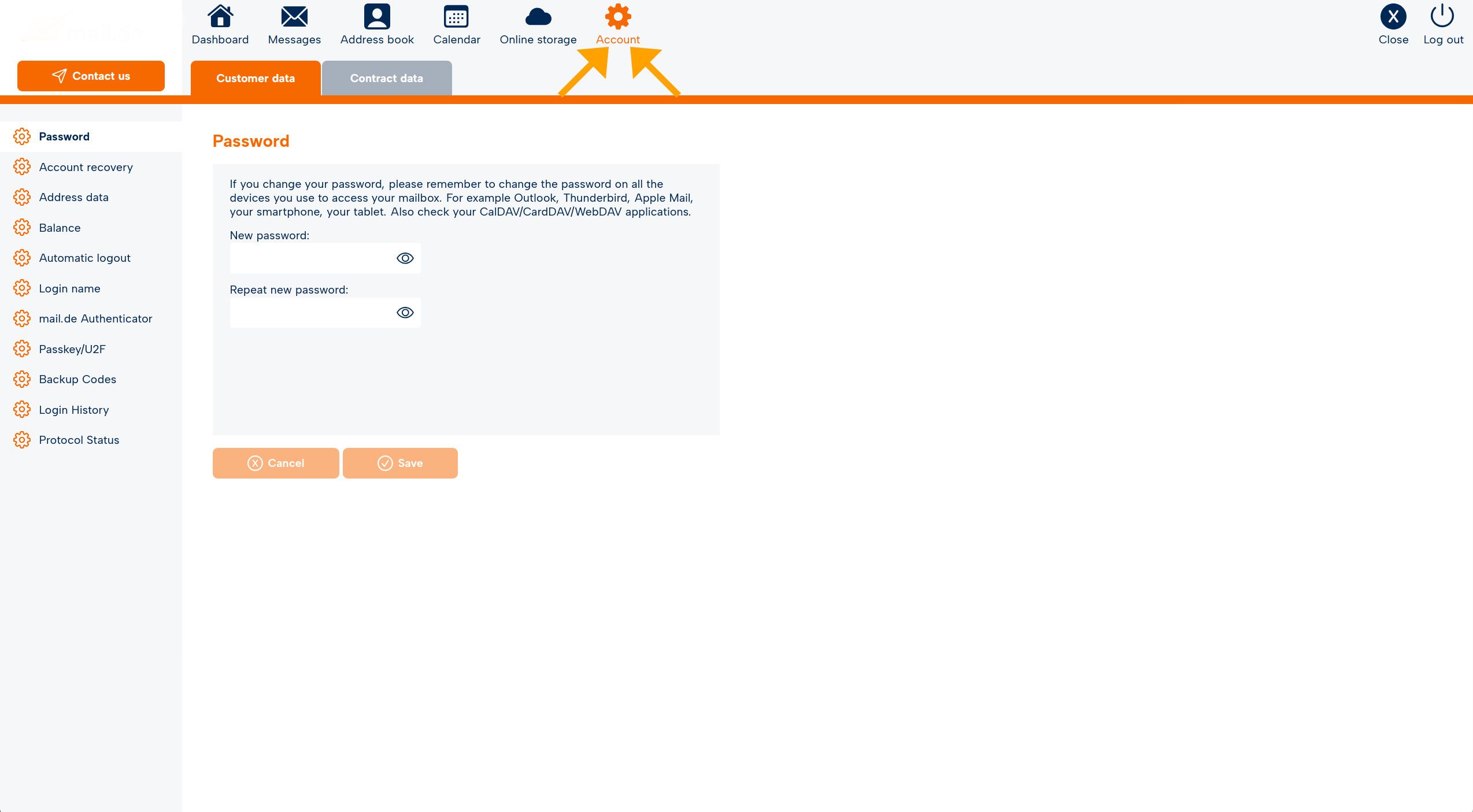
The navigation bar turns orange, go to the "Account" tab.
-
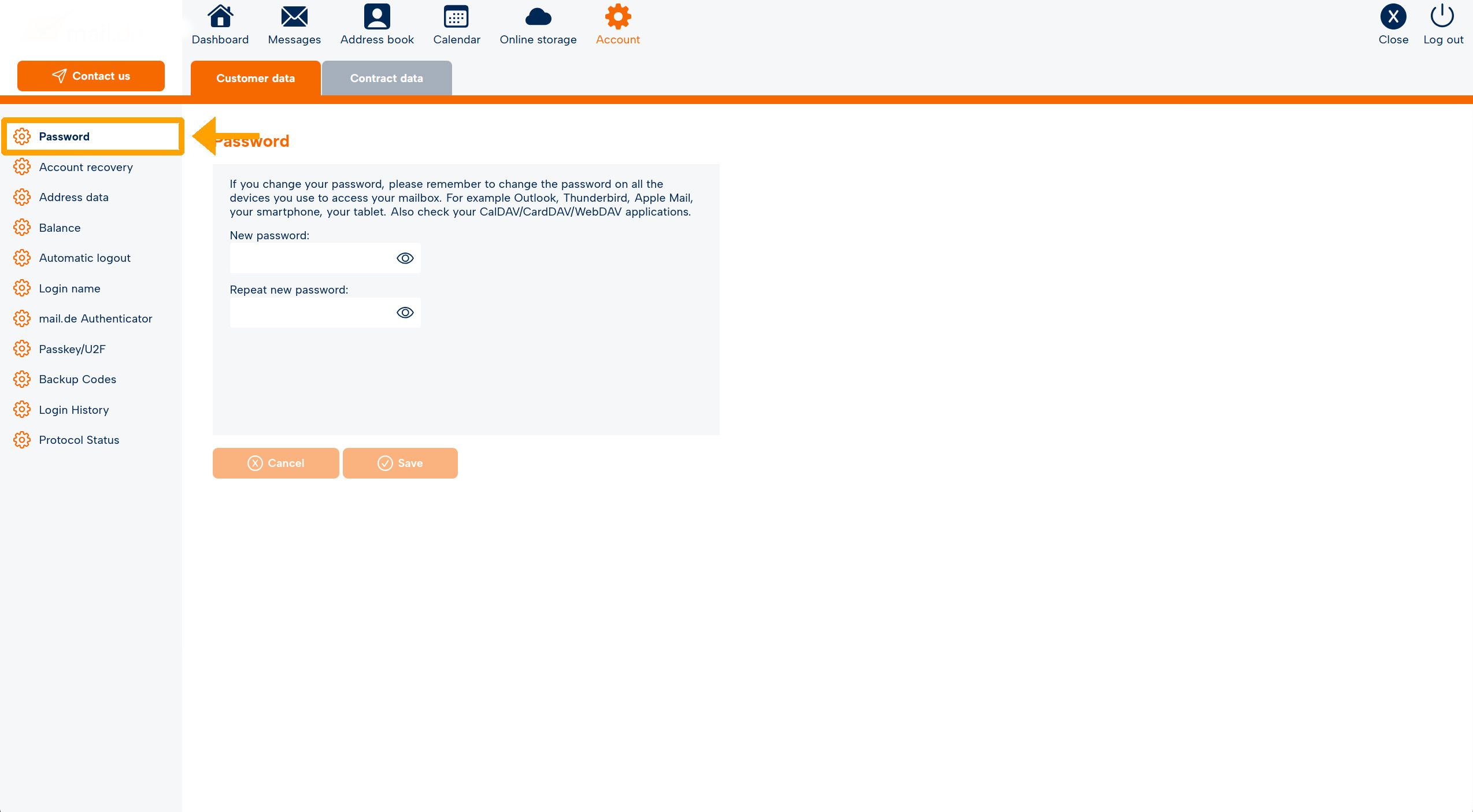
On the left side there are various menu items, select "Password" there.
-
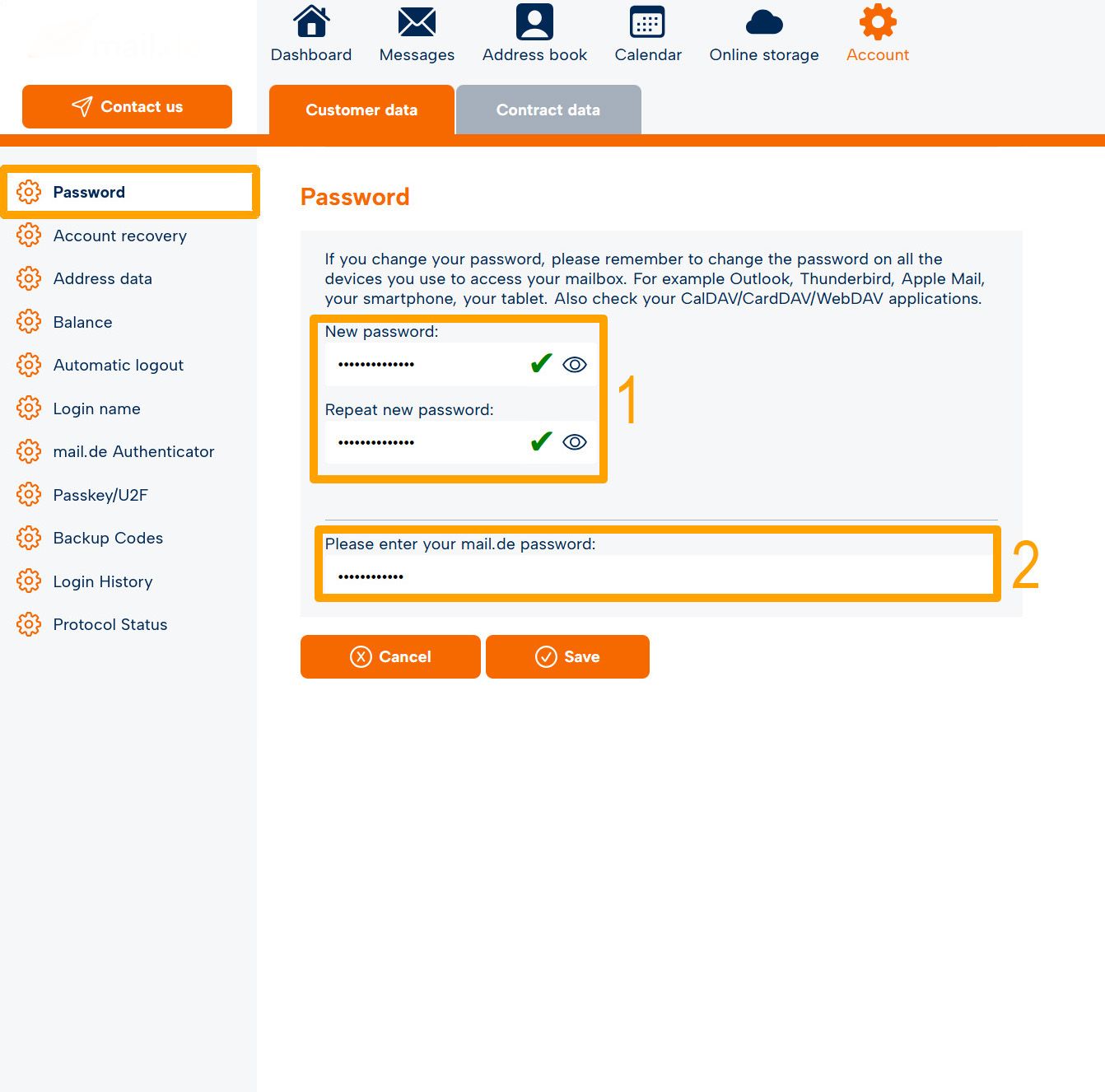
Now you can choose a new password, enter the desired character string under "New Password" (1). A green tick means that the password requirements are met and the password is valid; otherwise, a red cross is displayed.
-
After a valid entry, enter the character string again under "Repeat new password (1)". If both entries match, this is indicated by a green tick.
-
To confirm the change, enter your current password (2) in the relevant input field.
-
Click on "Save". Your new password is now valid.
Password requirements
A valid password is a minimum length of 12 characters, consists of upper and lower case letters, contains at least one special character and at least one digit.
Note: If you use an e-mail client (e.g. Microsoft Outlook, Mozilla Thunderbird), the new password must also be entered there.

